
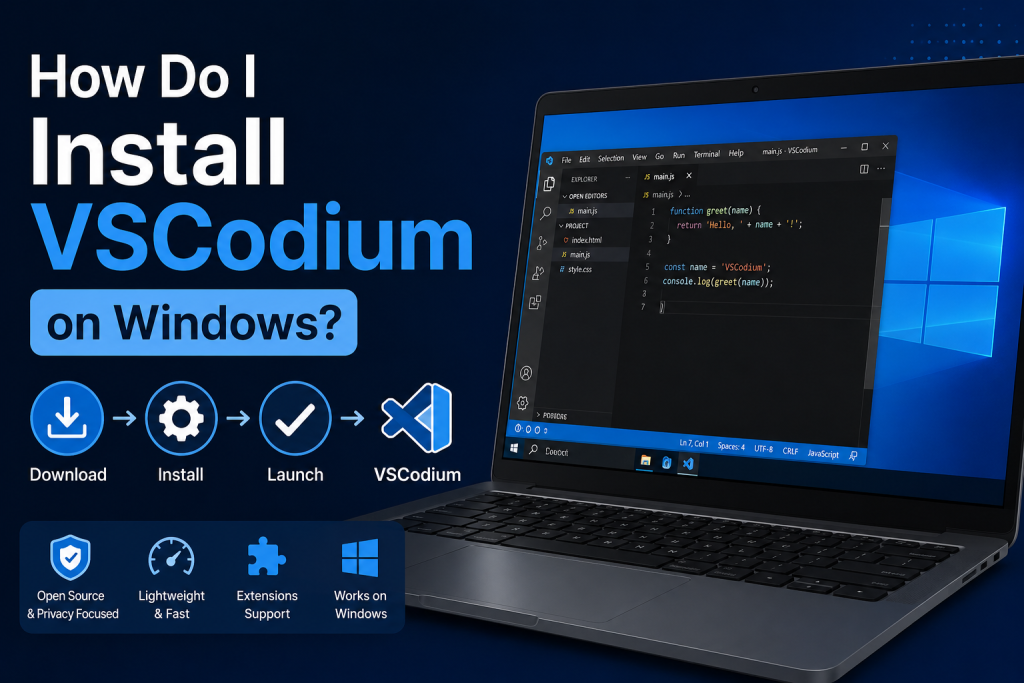
VSCodium is a popular open-source code editor that offers the same powerful features as Visual Studio Code while removing Microsoft’s telemetry and tracking components. It is an excellent choice for developers who value privacy, transparency, and complete control over their development environment. Installing VSCodium on Windows is a straightforward process that only takes a few minutes, even for beginners.
Whether you’re a web developer, software engineer, or coding enthusiast, VSCodium provides a fast, lightweight, and highly customizable workspace. In this guide, you’ll learn how to download, install, and configure VSCodium on Windows so you can start coding quickly and efficiently.
Read More: Can I Use VS Code Extensions in VSCodium?
What Is VSCodium?
VSCodium is a community-driven distribution of the open-source version of Visual Studio Code. It provides the same interface, extensions, themes, and development tools that programmers love while emphasizing transparency and privacy.
Since it is compiled directly from Microsoft’s open-source VS Code repository, users receive a familiar coding environment without built-in telemetry services.
Why Choose VSCodium?
Many developers prefer VSCodium because it offers:
- Enhanced privacy with telemetry disabled by default
- Full compatibility with most VS Code extensions
- Regular updates from the open-source code base
- Support for multiple programming languages
- A clean and lightweight development environment
Whether you’re a beginner learning to code or an experienced developer, VSCodium delivers a reliable coding experience on Windows.
System Requirements
Before installing VSCodium, make sure your computer meets these basic requirements:
- Windows 10 or Windows 11
- At least 4 GB of RAM (8 GB recommended)
- Stable internet connection for downloading extensions
- Administrator privileges for installation
Most modern Windows computers can run VSCodium without any issues.
How to Download VSCodium for Windows
The first step is downloading the official installer.
Visit the official VSCodium website and navigate to the Downloads section. You’ll find several versions available for Windows, including:
- User Installer
- System Installer
- ZIP Archive
- Portable Version
For most users, the User Installer is the easiest option because it installs VSCodium only for the current user and doesn’t require extensive system configuration.
Download the version that matches your Windows architecture, typically 64-bit.
Installing VSCodium on Windows
Once the installer has finished downloading, follow these steps:
Step 1: Launch the Installer
Locate the downloaded installation file in your Downloads folder and double-click it to start the setup process.
Windows may display a security prompt asking if you want to allow the application to make changes to your device. Click “Yes” to continue.
Step 2: Accept the License Agreement
Read through the license agreement and select the option to accept the terms. Then click “Next.”
Step 3: Choose Installation Location
The installer will suggest a default installation folder. Most users can keep the default location.
If you prefer a different directory, click “Browse” and choose a new location.
Step 4: Select Additional Tasks
During installation, you may see options such as:
- Create a desktop shortcut
- Add VSCodium to the system PATH
- Register supported file types
- Add “Open with VSCodium” to the context menu
Enabling these options can improve convenience and make development workflows smoother.
Step 5: Complete the Installation
Click “Install” and wait for the process to finish. The installation usually takes less than a minute on modern systems.
Once completed, click “Finish” to launch VSCodium.
Verifying the Installation
After VSCodium opens, you can verify that everything is working correctly.
Click on the Help menu and select “About.” A window will appear showing the installed version and build information.
You can also create a new file and start typing code to ensure the editor functions properly.
Installing Extensions in VSCodium
Extensions allow you to customize VSCodium for specific programming languages and workflows.
To install extensions:
- Open VSCodium.
- Click the Extensions icon on the left sidebar.
- Search for the extension you want.
- Click Install.
Popular extensions include support for Python, JavaScript, C++, Git integration, Docker, and many other development tools.
Some extensions may require access to alternative extension marketplaces depending on your VSCodium configuration.
Updating VSCodium
Keeping VSCodium updated ensures you receive the latest features, bug fixes, and security improvements.
Depending on your installation method, updates may be available automatically or require downloading the latest installer from the official website.
Regular updates help maintain compatibility with modern development tools and extensions.
Common Installation Issues and Solutions
Installer Won’t Launch
If the installer doesn’t start:
- Verify the download completed successfully
- Run the installer as Administrator
- Temporarily disable overly restrictive antivirus software
VSCodium Doesn’t Open After Installation
Try restarting your computer and launching the application again. If the issue persists, reinstall VSCodium using the latest installer.
Extensions Not Working
Make sure the extension is compatible with your version of VSCodium. Updating both the editor and the extension often resolves compatibility issues.
Conclusion
Installing VSCodium on Windows is a simple process that takes only a few minutes. Once installed, you’ll have access to a powerful, customizable code editor that prioritizes privacy while delivering the same familiar experience developers expect from Visual Studio Code.
Whether you’re building websites, developing applications, or learning programming for the first time, VSCodium provides a fast, reliable, and open-source development environment that works seamlessly on Windows.